Troubleshooting Common Orbital Analyst Issues
Missing an expected functionality
- Visit the Account Details page to check which account type you are using.
- Different account types have different permissions, meaning different functionalities may be available:
- Only Agency Approvers and Agency Superusers can edit alerts or send alerts to additional recipients.
- Only Admins (any organisation type), Analysts, Agency Approvers and Agency Superusers can view or edit users from their organisation (only to the lower permissions).
- Different account types have different permissions, meaning different functionalities may be available:
- If possible, sign into an account with higher permissions.
- Orbital analyst group mailbox accounts are Agency Analysts; individual accounts (firstname.surname@…) are Agency Approvers.
- You may be able to access more permissions if you sign in using your individual account.
All or part of the MSH portal not available, for example “Something went wrong”
- Sign out, then sign back in again.
- If you have had the MSH tab open for a while, your user session may have timed out and the browser has not redirected you to the homepage.
- Delete the last file uploaded, then force refresh the page.
- The error may be due to a problem in the file which was not automatically flagged during upload.
- If the error has occurred since the latest uploaded file, then:
- You can delete any file type using the appropriate /delete endpoint:
- Re-entry reports:
DELETE /v1/reentry-event-reports/{reentry_event_report_id} - Fragmentation reports:
DELETE /v1/fragmentation-reports/{fragmentation_report_id} - Conjunction reports:
DELETE /v1/conjunction-reports/{conjunction_report_id} - Satellite activity reports (flags):
DELETE /v1/activity-reports/{activity_report_id} - UKSA TIPs:
DELETE /v1/tips/{tip_id} - Ephemeris:
DELETE /v1/ephemeris/{ephemeris_id} - Manoeuvre trade space plots:
DELETE /v1/manoeuvre_plots/{manoeuvre_plot_id} - Conjunction analysis:
DELETE /v1/analyses/{analysis_id}
- Re-entry reports:
- If deleting the file restores MSH functionality, then check the file for invalid formats or data before re-uploading.
- You may need to re-number the file (for example,
report_numberfor reports) before re-uploading. This is especially important when promoting from Dev to Prod, as the eventshort_idorreport_numbermay be out of sync between environments.
Common problems with JSON files
A required field is left empty:
- Check which fields are required using the appropriate
GET /v1/.../schemaendpoint. Required fields are listed at the bottom of the schema response.
A string value is not in the format required by the enum (usually incorrect capitalisation):
- Enum requirements are case-sensitive.
- Check the exact enum format requirements using the appropriate
GET /v1/.../schemaendpoint.
A non-ASCII character is incorrectly encoded:
- Non-ASCII characters (for example, the é in México) may break if not properly encoded in UTF-8.
You may be able to use an online JSON validation tool, such as JSONLint, to check for other problems.
Alerts aren’t sending when you try to “Send to additional recipients” or a distribution list
If sending to individual recipients:
- Make sure you have added semicolons between email addresses.
If sending to a distribution list:
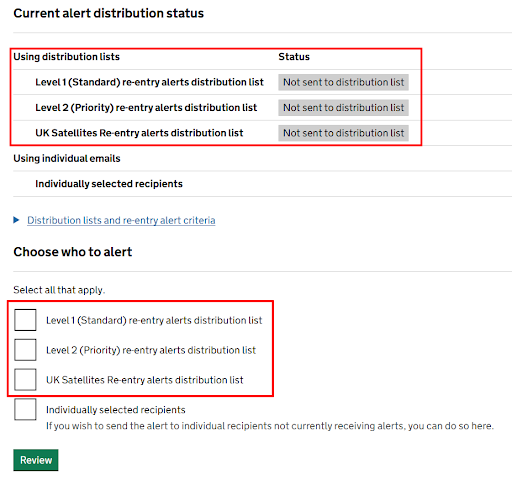
- Check whether the message has already been sent to that distribution list.
- If so, the relevant status will be highlighted and the checkbox(es) will be selected.
- Deselect all checkboxes, click ‘Review’, and click ‘Send’.
- This will not send to any distribution lists, but it will reset the configuration.
- By default, Monitor Space Hazards will not send an alert to distribution lists that have already been notified, which is why you need to reset the configuration of who has already been notified.
- The “Send alert” page should now look like the image below, with no lists selected. You can now repeat the “Send alert” process, this time selecting the distribution list(s) you need.
Further resources
The Ways of Working tech docs contain several useful how-to guides for key processes:
- Editing alerts directly from the webpage
- Sending alerts to new recipients
- Adding or editing users
- Using the API
This page was last reviewed on 26 September 2026.
It needs to be reviewed again on 26 December 2026
.
This page was set to be reviewed before 26 December 2026.
This might mean the content is out of date.